
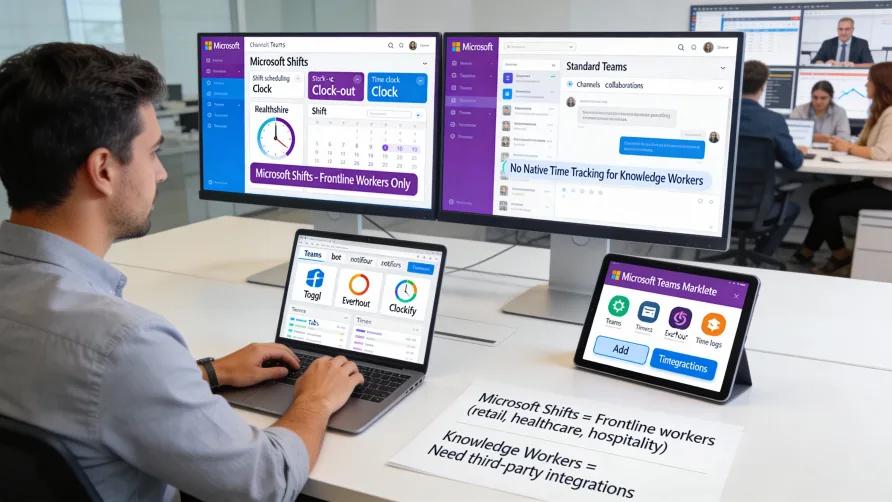
Microsoft Teams does not include built-in time tracking features for standard knowledge workers. The platform focuses on team collaboration through chat, video meetings, file sharing, and app integration, but lacks native capabilities for tracking project hours or managing employee timesheets for office-based work.
Microsoft does offer Shifts, a schedule management and time clock app within Teams designed specifically for frontline workers in industries like retail, hospitality, and healthcare. However, Shifts serves a different purpose than the project-based or office-worker time tracking most businesses need, and it's not available across all Microsoft 365 plan levels.
For comprehensive time tracking in Teams, most businesses turn to third-party applications that integrate with the Teams ecosystem, bringing dedicated time tracking functionality into the collaboration platform where teams already communicate and work.
Why Teams Doesn't Include Standard Time Tracking
Microsoft built Teams as a collaboration and communication platform rather than a comprehensive workforce management system. The product excels at real-time communication, document collaboration, and serving as a hub for other business applications, but Microsoft hasn't included project time tracking in the core Teams feature set.
This design choice reflects Microsoft's broader ecosystem approach. Rather than building every business function into Teams, Microsoft provides integration frameworks that let specialized third-party tools connect to Teams. This strategy lets businesses choose best-in-class solutions for specific needs while using Teams as their central workspace.
The absence of built-in time tracking means you'll either use Microsoft Shifts if you manage frontline workers, or integrate a dedicated time tracking platform if you need to track project hours, bill clients based on time, or manage knowledge worker timesheets.
Microsoft Shifts for Frontline Workers
Microsoft Shifts is a schedule management and time clock app included with certain Microsoft 365 subscriptions. The app integrates with Teams and provides scheduling, shift swapping, and time clock functionality specifically designed for frontline workers.
Shifts lets managers create work schedules and publish them to team members. Employees view their schedules within Teams, receive notifications about upcoming shifts, and can request time off or shift trades through the app.
The time clock feature in Shifts allows employees to clock in and out when they arrive for and leave their shifts. This clock-in data records when employees worked and can be used for attendance tracking and payroll purposes.
However, Shifts differs significantly from project-based time tracking that knowledge workers typically need. The app focuses on shift scheduling and attendance for hourly workers rather than tracking time spent on specific projects, tasks, or billable client work.
Shifts also has limited availability across Microsoft 365 plans. The feature is included with certain business and enterprise plans but may not be available depending on your subscription level. Businesses need to verify whether their plan includes Shifts before relying on it for time and attendance needs.
For organizations with frontline workers who need shift scheduling and basic time clock functionality, Shifts provides native functionality within Teams. For businesses that need project time tracking, task-level time management, or comprehensive workforce analytics, Shifts doesn't address those requirements.
How Do I Track Time in Microsoft Teams?
Time tracking in Teams for project-based work requires integrating third-party time tracking applications. These apps connect to your Teams environment and add time tracking functionality accessible through Teams interfaces, bots, or integrated apps.
The typical implementation involves installing a time tracking app from Microsoft's AppSource marketplace or directly from the time tracking provider. Once installed, the app adds time tracking capabilities that team members can access without leaving Teams.
Most time tracking integrations work through messaging bots, app tabs, or message extensions within Teams. You might interact with a time tracking bot using commands in Teams chat, access time tracking through a dedicated tab in specific channels, or use message extensions to quickly start timers.
For example, you might type a bot command in Teams like "@TimeTracker start project-name" to begin tracking time on a project. When finished, you'd send another command to stop the timer. The specific interaction patterns vary by time tracking platform.
Some integrations add tabs to Teams channels where you can view time summaries, start timers, or access timesheet interfaces. These tabs bring time tracking dashboards directly into Teams channels alongside your conversations and shared files.
The time data typically resides in the time tracking platform's own database rather than being stored within Teams itself. Teams serves as the interface for interacting with time tracking, while the external platform handles data storage, reporting, payroll integration, and comprehensive time tracking features.
What Time Tracking Apps Work With Teams?
Microsoft's ecosystem includes numerous time tracking applications designed to integrate with Teams. These range from simple timer apps to comprehensive workforce management platforms with extensive Teams integration.
The best time tracking solution for your Teams environment depends on your specific requirements including whether you need payroll integration, client billing capabilities, productivity monitoring, or specific reporting features.
Toggl Track for Microsoft Teams
Toggl Track provides time tracking that integrates with Teams through an app available in Microsoft's AppSource marketplace. The integration brings time tracking functionality into Teams where your team already collaborates.
The Teams integration includes a bot that responds to commands for starting timers, stopping tracking, and viewing time summaries. Team members can manage their time tracking through Teams chat without opening separate applications or browser tabs.
Toggl Track sends notifications through Teams including reminders to start tracking when the workday begins, alerts about running timers that may have been forgotten, and daily or weekly summaries of tracked time. These notifications help improve time tracking consistency.
The platform supports detailed time reporting that lives outside Teams. While you interact with time tracking through Teams interfaces, comprehensive reports, project budgets, and team analytics are available through Toggl Track's web application.
For businesses that bill clients based on hours, Toggl Track includes billing rate configuration and reporting that shows project profitability. The billable hours functionality helps agencies and professional services firms track client work accurately.
Clockify Integration With Teams
Clockify offers a Teams integration that adds time tracking to your collaboration workspace. The app provides timer functionality, manual time entry, and basic reporting accessible through Teams.
The Clockify Teams app includes commands for common time tracking actions. Team members can start and stop timers, log manual time entries, and check their tracked time without leaving Teams conversations.
Project and task organization carries over from Clockify into the Teams integration. When tracking time through Teams, you can specify which project and task the time applies to, ensuring proper categorization for reports and billing.
Clockify includes unlimited time tracking on its free plan, making it accessible for small teams or businesses with budget constraints. Paid plans add features like timesheet approval, invoicing, and advanced reporting.
The Teams integration connects to your Clockify account where detailed time data, comprehensive reports, and team management features exist. Teams provides convenient access to daily time tracking while Clockify handles sophisticated functionality.
Hubstaff for Microsoft Teams
Hubstaff provides workforce management and time tracking with Teams integration focused on remote team monitoring. The integration lets team members clock in and out, track project time, and receive workforce notifications through Teams.
The Teams app emphasizes productivity monitoring alongside time tracking. Hubstaff tracks not just work hours but also activity levels, application usage, and website visits, with summaries available through Teams commands.
Managers can receive productivity reports through Teams without accessing separate dashboards. The integration delivers automated reports showing team hours, productivity scores, and project time allocation directly to Teams channels or private chats.
Time tracking reminders and compliance notifications come through Teams. Team members receive prompts to clock in at the start of their workday, alerts about approaching timesheet deadlines, or notifications about missing time entries.
Hubstaff's comprehensive platform includes features like random screenshot capture, detailed activity monitoring, and GPS tracking for mobile workers. The Teams integration provides easy access to core tracking functions while advanced workforce analytics live in the full Hubstaff application.
Time Doctor Teams Integration
Time Doctor offers time tracking and productivity analysis with Teams integration designed for distributed workforces. The integration adds time tracking commands to Teams and delivers productivity insights through Teams notifications.
Team members can start and stop work timers using commands within Teams. When you begin your workday, you start Time Doctor tracking from Teams, and the time records in your Time Doctor account for payroll and reporting purposes.
Productivity reports and time summaries arrive through Teams notifications. Managers receive automated reports showing team productivity metrics, project time breakdowns, or individual employee summaries delivered to Teams channels.
The app sends compliance reminders through Teams. If team members haven't started tracking during work hours or have stopped timers prematurely, Time Doctor prompts them through Teams messages to maintain time tracking compliance.
Time Doctor's detailed features including screenshot monitoring, distraction tracking, and comprehensive productivity analytics exist in the dedicated platform. The Teams integration focuses on making basic time tracking convenient within your collaboration environment.
Benefits of Time Tracking in Teams
Integrating time tracking with Teams reduces the friction of tracking work hours. Team members can start timers and log time without switching applications, which improves compliance compared to requiring people to open separate time tracking platforms.
Notifications and reminders delivered through Teams reach people where they already work. Prompts to start timers, stop forgotten tracking, or submit timesheets arrive in Teams where they're more visible than email reminders or notifications from standalone apps.
The integration consolidates work tools in a single environment. Rather than juggling separate applications for communication, project management, and time tracking, you can access multiple functions within Teams.
For organizations heavily invested in Microsoft 365, keeping time tracking within the Teams ecosystem maintains consistency in user experience and reduces the learning curve for time tracking adoption.
Limitations of Teams-Based Time Tracking
Time tracking through Teams typically provides access to core functions like starting timers and checking daily summaries, but advanced features require using the time tracking platform's full interface. Detailed reporting, timesheet approval workflows, payroll configuration, and workforce analytics usually aren't available within Teams.
The Teams experience depends on the specific time tracking app you integrate. Some platforms provide robust Teams functionality with comprehensive commands and interactive interfaces, while others offer minimal Teams presence and primarily send notifications without much interactive capability.
Time tracking apps that integrate with Teams still require separate subscriptions. Installing a Teams integration doesn't provide free access to the time tracking service; it just connects your existing account to Teams for convenience.
Some time tracking platforms may have limited Teams integration compared to their integrations with other collaboration tools. Verify the depth of Teams functionality before committing to a platform based on its Teams integration.
Choosing a Time Tracking Solution for Teams
Start by defining your time tracking requirements beyond just Teams integration. Do you need time data for payroll? Will you bill clients based on hours? Do you need productivity monitoring? Understanding your core needs helps identify suitable platforms.
Evaluate the depth of Teams integration each platform offers. Some provide extensive Teams functionality including bots, tabs, and message extensions, while others offer minimal integration and primarily send occasional notifications.
Consider the time tracking platform's standalone capabilities. Since you'll use the full platform for reporting, administration, and advanced features, ensure it provides the functionality you need beyond what's accessible through Teams.
Review how the integration handles authentication and user management. Platforms that support single sign-on through Microsoft 365 credentials simplify the user experience and reduce authentication friction.
Test integrations with free trials before committing. Evaluate how well the Teams integration works for your team's workflow and whether team members find it convenient and helpful.
Implementation Considerations
Installing a time tracking app in Teams typically requires admin permissions for your Microsoft 365 environment. The installation process connects the time tracking platform to Teams and configures necessary permissions.
After installation, team members usually need to authenticate their individual time tracking accounts. This connection links each person's Teams identity with their time tracking account so actions in Teams record time under the correct user.
Training should cover the specific Teams commands or interfaces available for your chosen platform. Create quick reference guides showing how to start timers, stop tracking, log manual time, and view summaries through Teams.
Establish clear expectations about when to use Teams-based tracking versus accessing the time tracking platform directly. Clarify which functions are available through Teams and when team members need the full platform interface.
Configure notifications appropriately to balance helpfulness with avoiding notification fatigue. Too many prompts become annoying, while too few reminders may not provide enough support for consistent tracking.
Alternatives to Teams Integration
Some organizations find that standalone time tracking platforms work better than Teams integration despite the convenience factor. Browser extensions or desktop apps from time tracking platforms can provide similarly convenient access without depending on Teams.
For teams that prefer separation between communication and time tracking, dedicated time tracking apps might create clearer boundaries and help team members focus on appropriate tools for specific tasks.
Standalone time tracking platforms often provide more comprehensive mobile apps than what's accessible through Teams mobile. If your team works primarily from mobile devices, native time tracking apps might offer better experiences.
Getting Started With Teams Time Tracking
If you decide to add time tracking to Teams, start by selecting a platform that meets your business needs and offers Teams integration. Create an account with the time tracking service and configure it for your organization.
Install the time tracking app in Teams through AppSource or following the provider's integration instructions. Complete the authentication steps to connect your time tracking account with your Teams environment.
Have team members authenticate their individual accounts following the app's connection process. This setup ensures time tracked through Teams commands records under the correct user in your time tracking system.
Communicate with your team about the new functionality. Share the commands or interfaces they'll use and explain when to track time through Teams versus accessing the platform directly.
Monitor adoption and gather feedback during the initial rollout period. Identify confusion points or workflow friction and adjust your approach or provide additional training as needed.
Consider creating a Teams channel dedicated to time tracking support. This gives team members a place to ask questions, troubleshoot issues, or share tips about effective time tracking.
Review time tracking data regularly to ensure the Teams integration captures accurate time and that compliance remains high. Address data quality issues or adoption gaps early before they become entrenched problems.
For organizations with frontline workers, evaluate whether Microsoft Shifts meets your needs before pursuing third-party integrations. Shifts may provide sufficient functionality for shift scheduling and basic time clock needs without requiring additional software.