
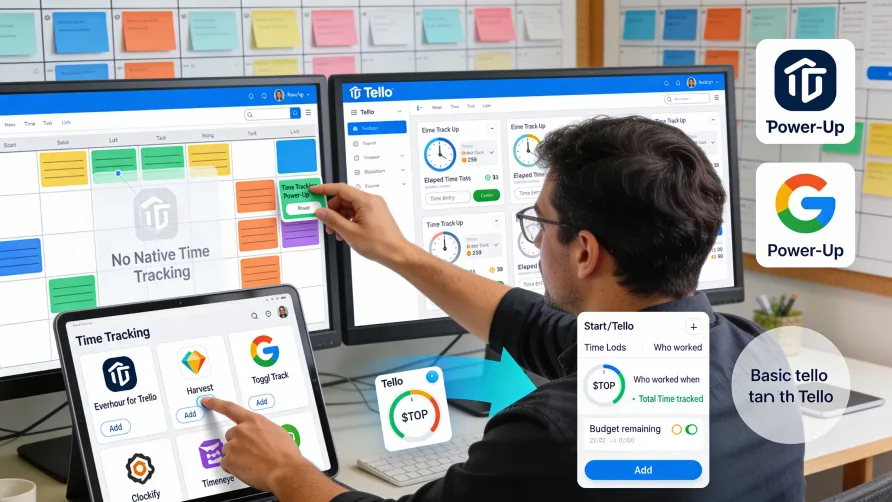
No, Trello does not have built-in time tracking features. The platform focuses on visual project management through boards, lists, and cards, but does not include native capabilities for tracking how much time you spend on tasks or managing employee hours.
This absence means you cannot track time directly within Trello without adding external functionality. However, Trello's extensibility through Power-Ups and third-party integrations lets you add comprehensive time tracking capabilities to your workflow without abandoning the Trello boards your team already uses.
Why Trello Doesn't Include Time Tracking
Trello built its platform around visual task management rather than attempting to be an all-in-one business management system. The board-and-card metaphor excels at organizing work visually, managing workflows, and facilitating team collaboration, but Trello deliberately keeps the core feature set focused.
This focused approach means Trello lacks several features common in other project management platforms including time tracking, resource management, advanced reporting, and financial tracking. Rather than building everything into the core product, Trello uses Power-Ups and integrations to extend functionality.
For users who need time tracking, this design philosophy means you'll add time tracking through external tools rather than finding it built into Trello. The advantage is you can choose time tracking solutions that match your specific needs rather than being limited to whatever basic time tracking Trello might have included.
The extension approach also means businesses can use Trello for project management while selecting specialized tools for time tracking, combining strengths from different platforms rather than compromising on either functionality.
How Do I Track Time in Trello?
Since Trello lacks native time tracking, you have two primary approaches for tracking time on Trello cards: installing time tracking Power-Ups from Trello's marketplace or integrating dedicated time tracking software with your Trello account.
Power-Ups are extensions that add functionality directly to your Trello boards. Time tracking Power-Ups appear within the Trello interface, letting you start timers or log time without leaving your boards. These Power-Ups typically add buttons to cards where you can track time against specific tasks.
Third-party integration tools connect to your Trello account and pull in your boards, lists, and cards. You track time in the external tool's interface, and that time data associates with the relevant Trello cards. This approach gives you more robust time tracking features than most Power-Ups provide, though it requires using a separate application.
Both approaches solve the fundamental problem of Trello's missing time tracking, but they differ in user experience, feature depth, and how thoroughly time tracking integrates with your Trello workflow.
Time Tracking Power-Ups for Trello
Trello's Power-Up marketplace includes several time tracking options that add basic to moderate time tracking functionality directly to your boards. These Power-Ups install within your Trello workspace and become part of the Trello interface.
Most time tracking Power-Ups add a timer button or time entry field to Trello cards. Team members can click to start a timer that runs while they work on a task, then stop the timer when finished. The elapsed time records on the card, creating a log of how much time was spent.
Power-Ups typically show time data directly on cards, either as badges showing total time logged or as detailed time entries when you open the card. This visibility lets you see at a glance how much time cards consumed without opening external applications.
Some Power-Ups aggregate time data across cards, lists, or entire boards. You can view total time spent on a board or filter time entries by team member, helping with basic time analysis and project time tracking.
The main limitation of Power-Ups compared to dedicated time tracking tools is feature depth. Power-Ups generally provide basic time logging and simple reporting, but lack advanced capabilities like timesheet approval workflows, payroll integration, detailed analytics, or invoice generation from tracked hours.
Power-Ups work well for teams that need straightforward time tracking for internal project management or basic productivity monitoring. They're less suitable for businesses that need time data for payroll processing, client billing, or detailed workforce analytics.
Third-Party Time Tracking Integrations
Dedicated time tracking software that integrates with Trello provides more comprehensive functionality than Power-Ups. These platforms are purpose-built for time tracking and offer features like running timers, timesheet management, approval workflows, detailed reporting, payroll integration, and invoice generation.
The integration connects your Trello account to the time tracking platform. Your boards, lists, and cards import into the time tracking tool, letting you associate time entries with specific Trello tasks. When you track time in the external tool, it links to the relevant Trello card.
Many integrations include browser extensions that add time tracking buttons directly to your Trello interface. These extensions let you start timers for Trello cards without leaving Trello, even though the actual time tracking happens in the external platform.
The time data lives primarily in the time tracking tool rather than in Trello. You access detailed reports, timesheet views, and time analytics through the time tracking platform's interface. Some integrations sync summary data back to Trello cards, showing total time tracked, but the comprehensive time data exists in the external system.
This approach works best for businesses that need robust time tracking capabilities including workforce management, billing and invoicing, or detailed productivity analysis. The external platforms provide functionality far beyond what Power-Ups typically offer.
What is the Best Time Tracker for Trello?
The best time tracking solution for your Trello workflow depends on your specific needs, team size, and how you'll use time data. Different tools excel at different use cases, and understanding your requirements helps you select the right option.
For teams focused on billable hour tracking and client invoicing, time tracking tools with strong billing features make sense. These platforms let you assign rates to different work types or team members and generate invoices directly from tracked time.
Businesses that need time data for payroll processing should choose tools with timesheet approval workflows and payroll system integrations. These features ensure employee hours go through proper review before processing and can export to your payroll software.
Teams tracking time primarily for productivity analysis or project management might prioritize reporting capabilities and ease of use over billing or payroll features. Simple time tracking with good analytics might be all you need.
Several established time tracking platforms integrate well with Trello and offer comprehensive feature sets for different business needs.
Toggl Track for Trello
Toggl Track provides time tracking that integrates with Trello through a browser extension. The integration adds a timer button to Trello cards, letting you start and stop time tracking without leaving your Trello boards.
Toggl Track offers one-click time tracking with visual timelines showing how you spent your day. The platform includes detailed reporting for understanding where time goes across projects, clients, or team members.
The tool supports both billable and non-billable time tracking, making it suitable for agencies and professional services firms that need to track client work. Reporting shows project profitability based on tracked hours and configured billing rates.
For team environments, Toggl Track provides manager views for reviewing team time, timesheet functionality for approving hours, and integrations with payroll systems for processing employee time.
Clockify Integration With Trello
Clockify offers free and paid time tracking that integrates with Trello. The browser extension adds timer functionality to Trello cards, and the platform includes unlimited time tracking even on free plans.
Clockify supports unlimited users on the free tier, making it accessible for growing teams or businesses with budget constraints. The free version includes basic reporting, manual time entry, and timer-based tracking.
Paid plans add features like timesheet approval, invoicing, expense tracking, and more detailed analytics. The platform lets you configure billing rates, track costs, and generate invoices based on billable hours.
The Trello integration ensures time entries link to specific cards, and you can view time summaries without leaving Trello while accessing detailed reports in the Clockify interface.
Everhour for Trello Time Tracking
Everhour focuses on time tracking for project-based work and provides deep Trello integration. The browser extension brings time tracking functionality directly into your Trello interface, making time logging feel like a native Trello feature.
Everhour specializes in features agencies and professional services need including budget tracking, billing rate management, capacity planning, and invoice generation. You can set project budgets and monitor actual time against budgeted hours.
The platform includes timesheet functionality for reviewing and approving employee hours. Team members log time throughout the week, and managers review timesheets before approving hours for payroll or client billing.
Reporting capabilities cover team utilization, project profitability, client profitability, and individual productivity. The analytics help you understand which projects are profitable and how your team's capacity is allocated.
Harvest Time Tracking for Trello
Harvest integrates with Trello to provide time tracking with strong invoicing capabilities. The integration lets you track time against Trello cards while using Harvest's business financial features.
Harvest excels at converting tracked time into client invoices. You assign billing rates to team members or project types, track billable hours, and generate professional invoices directly from your time data. The platform also handles expense tracking and includes expenses in invoices.
The tool provides reports for analyzing project budgets, team capacity, and profitability. You can see which clients or projects are most profitable and how your team's time distributes across work.
Harvest includes timesheet approval workflows for businesses that need manager review before processing hours. The platform integrates with accounting software and payroll systems for businesses that need to move time data into other financial systems.
Comparing Power-Ups Versus Dedicated Tools
Power-Ups offer tighter visual integration with Trello since they operate within the Trello interface itself. Time data appears directly on cards, and you don't need to switch applications to track time. This seamless experience works well for teams that want minimal disruption to their Trello workflow.
However, Power-Ups typically provide basic functionality compared to dedicated time tracking platforms. You get timers and simple time logs, but you may lack features like detailed reporting, timesheet approval, payroll integration, or invoicing capabilities.
Dedicated time tracking tools require switching between Trello and the time tracking platform for certain tasks, but browser extensions minimize this friction by adding timer buttons to Trello. The slight inconvenience of using two tools is offset by significantly more comprehensive functionality.
For businesses that need time data for payroll, client billing, or detailed workforce analytics, dedicated tools provide necessary features that Power-Ups generally don't offer. The investment in a proper time tracking platform pays off through better data, compliance support, and business process integration.
Teams tracking time primarily for internal project management without needing to process payroll or generate invoices might find Power-Ups sufficient. The simpler setup and tighter Trello integration may outweigh the limited feature set.
Implementation Considerations
Installing a time tracking Power-Up requires administrator permissions on your Trello workspace. You enable the Power-Up, configure any settings, and then team members can start using time tracking features that appear on cards.
Integrating external time tracking tools involves connecting your Trello account to the time tracking platform. This typically requires authorizing the time tracking tool to access your Trello data, which lets it import your boards and cards.
Most integrations require team members to install browser extensions to get timer buttons within Trello. Without extensions, users would need to switch to the time tracking tool's interface to start and stop timers, which creates more friction.
Training needs depend on your chosen solution. Power-Ups generally require minimal training since functionality appears within Trello's familiar interface. Dedicated tools need more training on using the time tracking platform alongside Trello workflows.
Consider how you'll enforce time tracking compliance. Will tracking be voluntary or mandatory? How will you remind team members to log their time? What consequences exist for incomplete time records? Establishing clear expectations helps ensure consistent time data.
Selecting Your Trello Time Tracking Solution
Start by defining what you need from time tracking. Are you tracking billable hours for client invoicing? Processing payroll based on employee hours? Analyzing team productivity? Understanding project time consumption? Your primary use case drives which features matter most.
Evaluate whether time data needs to integrate with other business systems. If you need to export hours to payroll software, generate invoices from time data, or sync with accounting systems, you need a platform with those integrations rather than a basic Power-Up.
Consider your budget and how many users need time tracking. Some platforms offer free tiers with limitations, while others charge per user. Calculate total costs based on your team size and required features.
Think about reporting requirements. Do you need basic time summaries or detailed analytics on utilization, profitability, and productivity? More sophisticated reporting generally requires dedicated time tracking platforms rather than Power-Ups.
Review user experience and how the tool integrates with Trello. Browser extensions that add timer buttons to Trello cards create better experiences than tools requiring constant switching between applications.
Getting Started With Time Tracking in Trello
Choose your time tracking solution based on your requirements and budget. Review available Power-Ups in Trello's marketplace or evaluate dedicated time tracking platforms that integrate with Trello.
If using a Power-Up, install it in your Trello workspace and configure settings. Enable the Power-Up on relevant boards and communicate with your team about how to use the new time tracking features.
For dedicated time tracking tools, create an account with your chosen platform and connect your Trello workspace. The integration will import your boards and cards, making them available for time tracking.
Install any required browser extensions so team members can track time directly from Trello. Test the integration by tracking time on a few cards to ensure data flows correctly between systems.
Establish time tracking policies including when to track time, how detailed time entries should be, and expectations for timesheet submission if using approval workflows. Clear policies improve data quality and compliance.
Train your team on the time tracking workflow. Show them how to start timers, log time manually if needed, and where to view their tracked time. Demonstrate how managers will review and approve timesheets if applicable.
Monitor adoption and data quality in the early weeks. Identify team members who aren't tracking time consistently and provide additional support or training as needed.