
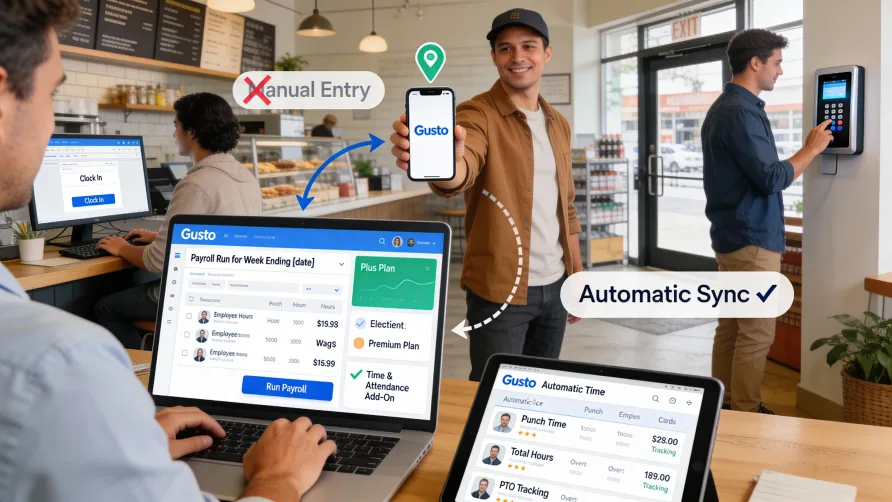
Yes, Gusto has time tracking capabilities. The time tracking feature is available on specific Gusto plans and integrates directly with Gusto's payroll system, automatically syncing hours worked to payroll calculations. This integration eliminates manual time entry during payroll processing and reduces errors from transcribing hours between systems.
Is Time Tracking Included with Gusto?
Time tracking is included with Gusto Plus, Gusto Premium, and the Time & Attendance Plus Simple add-on plans. It is not available on Gusto's basic Core plan or the Contractor Only plan type. If you're currently on the Core plan and need time tracking functionality, you can upgrade to access this feature at any time.
The time tracking feature comes as part of these plan subscriptions without requiring separate payment for time tracking itself. However, accessing it requires the higher-tier plans rather than the entry-level offering. This bundling means businesses get time tracking integrated with their existing Gusto payroll, benefits, and HR tools rather than managing a separate time tracking system.
For businesses that use Gusto primarily for payroll but want sophisticated time tracking features not included in Gusto's native functionality, Gusto also integrates with various third-party time tracking applications. These integrations allow you to export employee hours from external time tracking platforms directly into Gusto payroll.
Who Can Use Gusto Time Tracking?
Gusto time tracking is available to hourly employees, salaried employees who are eligible for overtime, and U.S.-based contractors paid by the hour. Both exempt and non-exempt salaried employees can track time, though the data syncs to payroll differently depending on overtime eligibility.
For hourly employees, all tracked hours sync to payroll for wage calculations. For overtime-eligible salaried employees, only overtime hours sync to payroll since their regular salary covers standard work hours. For overtime-ineligible salaried employees, tracked hours don't sync to payroll at all but can still be tracked for project costing, productivity analysis, or other business purposes.
U.S.-based contractors must have an hourly rate assigned rather than a fixed wage to use contractor time tracking. Multiple rates for contractors are not currently supported. International contractors cannot use Gusto time tracking at this time, and commission-only employees are also excluded from time tracking eligibility.
All team members who will track time must have an email address added to their Gusto profile. This email allows them to log in and access the time tracking features through Gusto's web interface or mobile app.
How Does Gusto Time Tracking Work?
Gusto time tracking records when employees start and end work, calculates total hours worked, and syncs that data directly to payroll. Employees can track time through multiple methods depending on what works best for their work environment.
The most common method involves employees logging into their Gusto account via web browser or mobile app and clicking "Clock in" when they start work. When their shift ends, they click "Clock out." Gusto automatically calculates the time worked between clock-in and clock-out, recording it down to the minute.
Alternatively, employees can manually add hours for each day by entering their start and end times rather than using real-time clock-in and clock-out. This manual entry option works well for employees who forget to clock in or out, or for work environments where real-time tracking isn't practical. Employers must give employees edit access to their timesheets for manual time entry to be available.
Time tracking follows your payroll schedule's workweek settings. The workweek in Gusto time tracking corresponds with your pay schedule, ensuring tracked hours align with the correct pay period. If you need to change the workweek, you'll need to update your pay schedule. Gusto requires pay schedules to be set up in arrears as a requirement for using time tracking.
Setting Up Time Tracking in Gusto
Before you can start tracking time, an administrator needs to enable the feature and configure it for your organization. Sign in to Gusto with administrator credentials and navigate to the Settings section. Select the Customization tab and find the time tracking option. Toggle it to "Enabled" and save your changes.
After enabling time tracking, click the Time & Attendance section and select Time tracking. New users will see a "Set up time tracking" button that guides you through the initial configuration process. This setup includes selecting which team members will participate in time tracking and assigning overtime policies.
All overtime-eligible employees must be assigned to an overtime policy before you can start using time tracking. This ensures Gusto correctly calculates overtime pay based on applicable labor laws and your company policies. Meal and rest break policies should also be configured for overtime-eligible employees to help with compliance.
All eligible team members are selected to participate in time tracking by default when you enable the feature. You can click into the dropdown to remove anyone you don't want tracking time. The setup wizard shows ineligible team members below the dropdown so you understand who cannot use time tracking based on their employment classification.
Using the Gusto Mobile App for Time Tracking
Employees can track their time using the Gusto Workforce mobile app available for iOS and Android devices. The mobile app provides flexibility for workers who are frequently away from desks or working in the field. Employees download the app, sign in with their Gusto credentials, and access time tracking from their phones or tablets.
From the mobile app, employees can clock in and out with a tap, manually add hours if they forgot to clock in or out, take and track breaks, view their time worked for the current day and week, and submit notes with their time entries if required by their employer.
The mobile app allows time tracking even without Wi-Fi or cell service in some cases, though connectivity is required to sync the data to Gusto's servers. This offline capability helps field workers in areas with limited connectivity track their hours accurately.
For employees assigned to multiple projects or job roles, the mobile app displays options to select which project or role they're working on before clocking in. This project-level tracking provides detailed data on how time is distributed across different work types or clients.
Gusto Time Kiosk Option
Gusto offers a Time Kiosk feature that turns any tablet, laptop, or desktop computer into a shared time clock where multiple employees can punch in and out. This kiosk option works well for businesses with centralized workplaces where employees don't have individual devices or desk computers.
The Time Kiosk is available to customers on Plus, Premium, or Time & Attendance Plus Simple add-on plans who use time tracking. To set up a kiosk, administrators navigate to the Time & Attendance section in Gusto, find the kiosk tile, and follow the setup process which generates an 8-character activation code.
On the device you want to use as a kiosk, open a web browser and navigate to the kiosk web address. Enter the 8-character code displayed in your Gusto admin panel. The code expires every five minutes, so you may need to refresh for a new code if setup takes longer than expected.
Once activated, all team members assigned to time tracking automatically appear on the kiosk. Employees find their name by scrolling or using the search function, then enter their personal 4-digit PIN to clock in or out. The PIN system prevents unauthorized time entries and provides individual accountability.
Each employee sets up their own PIN through their Gusto account or directly on the Time Kiosk during first use. Administrators and managers cannot see or change employee PINs, maintaining privacy and security. Employees should not share their PINs with coworkers as the PIN verifies their identity when recording time.
The kiosk shows time based on the time zone of the device it's installed on, but the actual time recorded on timecards uses the employee's time zone set in their Gusto profile. This distinction matters for businesses with employees in different time zones using the same kiosk.
Project Time Tracking
Beyond basic time tracking, Gusto offers project tracking capabilities for businesses that need to track time spent on specific projects, clients, or tasks. Project time tracking is available on Plus, Premium, and Time & Attendance Plus Simple add-on plans, though currently only employees can track time to projects, not contractors.
Administrators create projects in Gusto and assign employees who should track time against those projects. A project can represent anything from a day-to-day task to a job for a specific client. Each project can include multiple tasks for more granular tracking.
When employees clock in, they select which project and optionally which task they're working on. They can switch between different projects throughout the day without clocking out, accurately capturing how time is distributed across various work. Salaried employees can add detailed notes to their time entries explaining what they accomplished.
Project time tracking enables workforce costing reports that break down labor costs by project. You can view wages, taxes, workers' compensation, benefits, and other costs associated with each project. This data helps with client billing, profitability analysis, and understanding the true cost of project delivery.
The system calculates project costs by determining what percentage of each employee's time was spent on each project, then allocating their total payroll costs proportionally. These reports become available after payroll has been run for the period, providing accurate cost data based on actual payments.
Time Tracking and Payroll Integration
The primary advantage of Gusto's integrated time tracking is how it connects directly to payroll processing. When it's time to run payroll, tracked hours automatically populate the payroll system. For hourly employees, Gusto multiplies hours worked by their hourly rate to calculate gross pay. For overtime-eligible employees, it identifies overtime hours and applies the appropriate overtime rate.
This automation eliminates the manual process of reviewing timesheets, calculating hours, and entering totals into payroll software. The integration reportedly saves businesses time during each payroll run while reducing errors from manual data transfer.
Employees can track their hours up until the point when hours have been approved or a payroll administrator processes payroll for that pay period. Once payroll runs, the time data for that period becomes locked to maintain payroll integrity. If employees need to track hours for a past pay period, they must contact their payroll administrator.
For businesses with complex pay structures, Gusto time tracking supports employees with multiple pay rates. Employees with different rates for different roles or projects select which role they're clocking in for, and Gusto applies the correct rate when calculating pay.
Break Tracking and Compliance
Gusto time tracking includes break tracking to help businesses comply with meal and rest break requirements. Employees can indicate when they take breaks during their shifts, and those breaks are recorded on their timesheets. Breaks can be configured as paid or unpaid depending on your policies and legal requirements.
Meal and rest break rules apply to overtime-eligible employees but not to contractors or overtime-ineligible employees. Rest breaks, which are typically short (under 20 minutes), are usually paid and count toward overtime calculations. Meal breaks have different rules that vary by state, including penalties if breaks are missed.
When you set up break policies in Gusto, the system flags missed breaks on employee timesheets. This flagging helps administrators ensure compliance with break requirements and reminds employees to take their required breaks. The system does not currently flag extra breaks beyond what's required.
These compliance features help businesses in states with strict meal and rest break laws avoid penalties. The automatic flagging of missed breaks provides early warning when employees aren't taking required breaks, allowing management to address the issue promptly.
Time Tracking Reports and Approvals
Administrators and managers can review and approve employee timesheets before payroll runs. The Time & Attendance section displays pending timesheets that need review. Approvers can edit hours if needed, add notes, or request corrections from employees before finalizing.
Time tracking reports show hours worked by employee, hours by project, hours by time period, and various other breakdowns. You can generate attendance reports that compare scheduled hours to actual hours worked if you also use Gusto's scheduling feature alongside time tracking.
The attendance report highlights flags like no-shows, late arrivals, early departures, or staying past scheduled end times. These flags help identify attendance patterns and address issues proactively. The report can be filtered by pay period or custom date range and by specific employees or groups.
For businesses using project tracking, workforce costing reports provide detailed breakdowns of project costs. These reports show real-time project hours as employees track them, and complete cost data becomes available after payroll processes. You can filter workforce costing reports by time period, employee, project, or task to analyze costs at various levels of detail.
Time Tracking Limitations and Considerations
While Gusto time tracking integrates smoothly with Gusto payroll, it has some limitations compared to standalone time tracking systems. GPS tracking and geofencing are not currently built into Gusto's time tracking, though some integrations may provide these features. Location tracking for field workers requires using third-party time tracking applications that integrate with Gusto.
Manager approvals for project time tracking are not included in the current version. The system focuses on tracking hours and syncing them to payroll rather than complex approval workflows for project assignments. Overhead or material costs for projects cannot be tracked directly in Gusto; only labor costs are captured.
International contractors cannot use Gusto time tracking, limiting its use to U.S.-based workers. This restriction matters for businesses with global teams who need unified time tracking across all workers regardless of location.
Time tracking customization is somewhat limited compared to enterprise time tracking platforms. The feature provides essential time capture and payroll integration but may not meet the needs of organizations requiring extensive customization, detailed activity tracking, or sophisticated workforce analytics.
Upgrading to Access Time Tracking
If your current Gusto plan doesn't include time tracking, you can upgrade at any time. Sign in as a primary or company administrator, click the gear icon, and select "Subscriptions and billing." Ensure your payment information is current, then find your QuickBooks Online section and click "Upgrade your plan." Review available plans and select the one that includes time tracking.
The upgrade takes effect based on your billing cycle, and you can begin setting up and using time tracking once the upgrade processes. Existing employee and contractor data carries over, so you won't need to re-enter team member information.
For businesses uncertain whether time tracking justifies upgrading, consider the time spent manually entering hours into payroll, the potential for errors in manual time entry, the need for project cost tracking, and compliance requirements for documenting hours worked. If these factors represent significant time or risk, the upgrade to access integrated time tracking often provides clear return on investment.
Gusto Time Tracking Streamlines Payroll
Gusto does offer time tracking as part of its Plus, Premium, and Time & Attendance add-on plans. The feature integrates directly with Gusto payroll, automatically syncing hours to eliminate manual entry. Employees can track time via web browser, mobile app, or shared time kiosk using PINs for security.
The system supports hourly employees, overtime-eligible salaried employees, and U.S.-based hourly contractors. Project tracking capabilities allow businesses to track time by project and task, with workforce costing reports showing true labor costs. Break tracking helps with compliance in states with meal and rest break requirements.
For businesses already using Gusto for payroll, the integrated time tracking eliminates the need for separate time tracking systems and manual data transfer between platforms. The automation saves time during each payroll run while providing the documentation needed for compliance and cost analysis.