
QuickBooks Online provides time tracking capabilities that help businesses monitor employee hours, manage billable time, and streamline payroll. Whether you track time for client billing, payroll processing, or project management, understanding how to properly set up time tracking ensures accurate records and efficient workflows.
This guide covers everything you need to configure time tracking in QuickBooks Online, from enabling the basic features to connecting advanced tools.
Does QuickBooks Online Have Time Tracking?
Yes, QuickBooks Online includes time tracking functionality, but availability depends on your subscription tier. The Simple Start plan does not include time tracking. Time tracking becomes available starting with QuickBooks Online Essentials, Plus, and Advanced plans.
Two distinct time tracking options exist within the QuickBooks ecosystem:
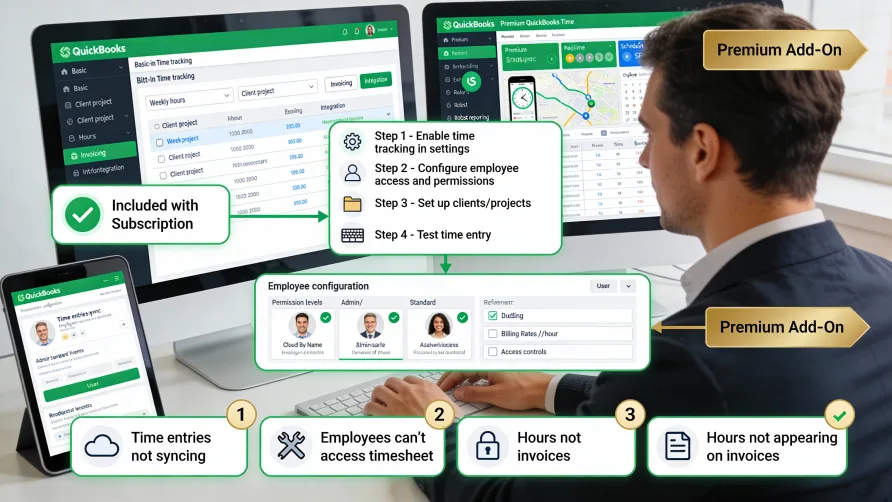
Basic Time Tracking comes included with your QuickBooks Online subscription at no additional cost. This option provides manual time entry capabilities, basic reporting, and integration with invoicing and payroll features. You create time entries for employees or contractors and use that data for billing clients or running payroll.
QuickBooks Time (formerly TSheets) operates as a premium add-on service requiring a separate subscription. It adds GPS tracking, mobile clock-in/clock-out, geofencing, scheduling, and automated time capture. QuickBooks Time also comes included with QuickBooks Online Payroll Premium and Elite plans.
The choice between basic time tracking and QuickBooks Time depends on your needs. Businesses with office workers manually entering time find basic tracking sufficient. Companies with field workers, mobile teams, or complex scheduling requirements benefit from QuickBooks Time's advanced capabilities.
How Do I Enable Time Tracking in QuickBooks?
Enabling time tracking in QuickBooks Online requires accessing your account settings and toggling the appropriate options. The process differs slightly between basic time tracking and QuickBooks Time.
Enabling Basic Time Tracking
Log into your QuickBooks Online account and navigate to the Time section. QuickBooks often displays a promotional screen advertising QuickBooks Time premium features. To access the free basic time tracking instead of subscribing to the paid service, scroll to the bottom of the promotional window and click the small "Use basic time tracking (included in your current plan)" link.
This action activates basic time tracking and returns you to the Time Overview page where you can begin setting up your time tracking preferences.
For more direct access, navigate through Settings:
Click the gear icon in the upper right corner of your QuickBooks Online interface. Select "Account and Settings" from the "Your Company" section. Choose the "Time" tab from the left-hand menu. Toggle the time tracking switch to the ON position.
Within the Time settings, you'll find several configuration options. The "Track time on timesheets" setting enables manual time entry for employees and contractors. The "Add service/task to time entries" option allows users to select specific tasks or services when logging time, providing more detailed tracking for different types of work.
You can also determine whether time entries default to billable status, which helps when most of your tracked time should be invoiced to clients.
Connecting QuickBooks Time
Setting up QuickBooks Time requires a subscription to either QuickBooks Time directly or QuickBooks Online Payroll Premium/Elite, which includes QuickBooks Time at no additional charge.
To connect QuickBooks Time to your QuickBooks Online account:
Navigate to the Apps menu in QuickBooks Online's left navigation bar. Search for "QuickBooks Time" in the apps marketplace. Click "Launch" to begin the setup process. Choose between QuickBooks Time Premium or Elite plans based on your feature needs.
The connection process syncs your QuickBooks Online company data with QuickBooks Time, importing employees, customers, and projects. This integration ensures time tracked in QuickBooks Time flows automatically into QuickBooks Online for invoicing and payroll.
QuickBooks Time Elite adds project management features including real-time collaboration, project progress tracking, estimates versus actuals reporting, mileage tracking, and geofencing capabilities. Premium focuses on core time and attendance tracking with GPS location stamps and basic scheduling.
Setting Up Employees for Time Tracking
Time tracking requires employee profiles configured with the appropriate permissions and settings. The setup process differs depending on whether employees will track their own time or whether managers will enter time on their behalf.
Adding Time Tracking Users
Employees who track their own time need time tracking user access. To create a time tracking user:
From the Time Overview page, click the "Add team" dropdown in the Shortcuts widget. Select "Add employee" to open the new employee window. Enter required employee information including name and contact details. Ensure the "Turn on time tracking for this employee" checkbox remains checked. Choose whether to send the invitation by text message or email. Enter the corresponding mobile number or email address. Click "Add employee" to save and send the invitation.
The employee receives an invitation to create their QuickBooks Time credentials. They download the QuickBooks Workforce mobile app or access time tracking through the web browser. Once logged in, they can clock in and out, view their schedule, and submit timesheets.
Adding Employees for Manual Time Entry
When managers or administrators enter time on behalf of employees, you don't need to create time tracking user accounts. Instead, add employees through the standard employee setup:
Hover over the "Payroll" link in the navigation bar. Click "Employees" in the side menu. Select "Add an employee" to open the employee details window. Enter at minimum the employee's first and last names (asterisks indicate required fields). Add any additional information needed for your records. Click "Add employee" to save.
To configure billing rates for employees, click the employee name in the Employees list. Select "Edit" in the Employment details section. Enter the "Billing rate (per hour)" if the employee has a standard hourly rate independent of the service provided. Check "Billable by default" to automatically mark their time as billable to clients.
Service items assigned to time entries can override these default rates, giving you flexibility for different types of work at different billing rates.
Configuring Time Tracking Settings
Customize time tracking behavior through the Time settings to match your business processes. Access these settings through the gear icon, then Account and Settings, then the Time tab.
Work Week Configuration
Set the first day of your work week from the "First day of work week" dropdown. This affects how weekly timesheets display and how reports calculate weekly totals. Most businesses use Monday, but select whichever day aligns with your payroll cycle.
Choose your time zone from the "Time zone" dropdown to ensure timestamps display correctly for your location. This matters especially for businesses with employees in multiple time zones.
Timesheet Behavior
The "Split timesheets at midnight" option determines how time entries spanning midnight appear. When enabled, a shift from 11:00 PM to 1:00 AM appears as two separate entries: one hour on the first day and two hours on the second day. Disable this if you prefer to see overnight shifts as single continuous entries.
Control whether team members can create and edit their own timesheets with the corresponding checkbox. Disabled, only administrators and managers can modify time entries. Enabled, employees gain control over their own time records, reducing administrative burden but requiring trust in employee accuracy.
Some plans allow setting a threshold for consecutive work hours after which employees can edit their clock-out time. This accommodates situations where employees forget to clock out but prevents unlimited editing that could lead to timesheet fraud.
Notification Settings
Time tracking reminders help employees remember to clock in and out consistently. Configure notification settings to send automated reminders:
Select times from the "Send clock-in reminder" and "Send clock-out reminder" dropdowns. Check "Email" or "Mobile" to choose delivery method. Click "Days reminders are sent" to select which days receive reminders.
Set notifications for time adjustments and note edits to keep relevant parties informed when timesheets change. Choose who receives these notifications from the dropdown options.
Integrating Time Tracking with Payroll
The power of QuickBooks time tracking emerges through integration with payroll. Time data flows directly into payroll calculations, eliminating manual entry and reducing errors.
QuickBooks Online Payroll Integration
QuickBooks Online Payroll Premium and Elite include QuickBooks Time automatically. The integration syncs time tracking data into your payroll runs:
Navigate to Payroll from the main navigation. Select the pay period to process. QuickBooks automatically populates employee hours from approved timesheets. Review the imported hours for accuracy. Make any necessary adjustments before finalizing payroll. Run payroll normally—the system calculates wages based on tracked hours.
The integration respects different pay rates for regular time, overtime, and double-time. It also handles billable versus non-billable time appropriately, ensuring you pay employees correctly while tracking what to invoice clients.
Third-Party Payroll Integration
QuickBooks Time integrates with over 50 payroll and accounting platforms beyond QuickBooks products. Connect to Gusto, ADP, Paychex, Square Payroll, and others through the integrations menu.
Each integration requires configuration to map time tracking data to the appropriate payroll fields. Follow the setup wizard for your specific payroll provider, establishing the connection and defining how time categories translate into pay categories.
Export timesheets manually if your payroll provider lacks direct integration. QuickBooks generates CSV or Excel files containing employee hours for a selected date range. Import these files into your payroll system according to that platform's import procedures.
Creating and Managing Time Entries
Once setup completes, you can begin tracking time through various methods depending on your configuration.
Manual Time Entry
Create manual time entries from the Time section:
Click "Time" in the left navigation. Select "Time Entries" then "New Time Entry." Choose the employee whose time you're recording. Enter the date the work occurred. Select the customer and project if tracking billable time. Choose the service or task performed. Enter the hours worked in the Duration field. Mark the entry as billable or non-billable. Add notes describing the work completed. Click "Save" to record the entry.
Manual entry works well for salaried employees, administrative time, or any situation where real-time tracking isn't practical.
Using QuickBooks Time Clock Features
QuickBooks Time provides multiple clock-in methods for real-time tracking:
Mobile App: Employees install QuickBooks Workforce on iOS or Android devices. They clock in by tapping the clock-in button, selecting a customer or job, and starting the timer. GPS captures their location at clock-in and clock-out. The app works offline and syncs data when connectivity returns.
Web Browser: Employees access QuickBooks Time through any web browser. The web timer functions identically to the mobile version. Team members working from desktops can clock in without installing additional software.
Time Clock Kiosk: Set up an iPad or tablet as a central time clock. Employees enter a unique PIN to clock in and out. This works well for work sites without personal devices or for businesses preferring a centralized punch clock.
Phone Dial-In: QuickBooks Time offers a toll-free number for clocking in by phone. This feature comes at an additional monthly cost per employee but serves workers without smartphones or internet access in remote locations.
The choice of clock-in method depends on your workforce. Mobile employees use the app for GPS tracking. Office workers prefer web browsers. Manufacturing or retail might use the kiosk for a central time clock all employees share.
Timesheet Review and Approval
Implement a timesheet approval workflow to verify accuracy before processing payroll or invoicing:
Navigate to Time, then Timesheets. Select the time period to review. View timesheets by employee, showing all entries for that period. Check for errors, missing entries, or excessive hours. Edit entries as needed by clicking on them. Approve timesheets when verified.
Approved timesheets lock to prevent further editing unless an administrator unlocks them. This ensures payroll data doesn't change after processing. Set approval as required in your Time settings to enforce this workflow.
Common Time Tracking Issues and Solutions
Several issues commonly arise during time tracking setup and use. Understanding these problems helps you resolve them quickly.
Cannot Access Basic Time Tracking
QuickBooks aggressively promotes QuickBooks Time, sometimes making basic time tracking difficult to find. The promotional screen lacks an obvious way to decline the paid service.
Solution: Scroll to the very bottom of the promotional window and look for small text reading "Use basic time tracking (included in your current plan)." Click this link to bypass the upgrade prompt. Alternatively, manually navigate to your company's time tracking URL by adding "/tracking" to the end of your QuickBooks URL.
Time Tracking Not Available
Time tracking features don't appear in your QuickBooks Online navigation.
Solution: Verify your subscription tier. Simple Start plans lack time tracking entirely. You must upgrade to Essentials, Plus, or Advanced to access time tracking functionality. Navigate to Settings, then Subscriptions and Billing to review your current plan and upgrade options.
Employees Cannot Clock In
Team members report they cannot access the time tracking features despite receiving invitations.
Solution: Confirm employees accepted their invitations and created QuickBooks Workforce accounts. Check that employees use the correct login credentials for QuickBooks Workforce, which differ from QuickBooks Online admin credentials. Verify you enabled the "Allow team members to create and edit their own timesheets" setting if employees should have direct access.
Time Not Syncing to Payroll
Tracked hours don't appear when processing payroll.
Solution: Ensure timesheets received approval before running payroll. QuickBooks only imports approved time entries into payroll calculations. Verify the QuickBooks Time integration remains connected by checking the Apps menu. Confirm the pay period dates in payroll match the dates of approved timesheets.
GPS Not Working
Location tracking fails to capture employee locations during shifts.
Solution: Employees must grant location permissions to the QuickBooks Workforce mobile app. On iOS, go to Settings, Privacy, Location Services, and set QuickBooks Workforce to "Always" for continuous tracking. On Android, navigate to Settings, Apps, Permissions, Location, and grant permission. Remind employees GPS requires cellular or Wi-Fi connectivity; offline periods won't capture location until the device reconnects.
Setting up time tracking in QuickBooks Online streamlines how you monitor employee hours and manage billing. Basic time tracking handles simple use cases effectively at no additional cost. QuickBooks Time provides advanced capabilities for businesses needing GPS, mobile access, and automated tracking.
The initial setup requires attention to detail in employee configuration and settings, but once established, time tracking runs smoothly with minimal ongoing maintenance. Time data flows seamlessly into payroll and invoicing, reducing administrative work while improving accuracy.
Take advantage of the 30-day free trial if considering QuickBooks Time to test advanced features before committing to the additional subscription cost. For many businesses, basic time tracking suffices, while others find the enhanced capabilities of QuickBooks Time justify the expense through improved efficiency and reduced time theft.