
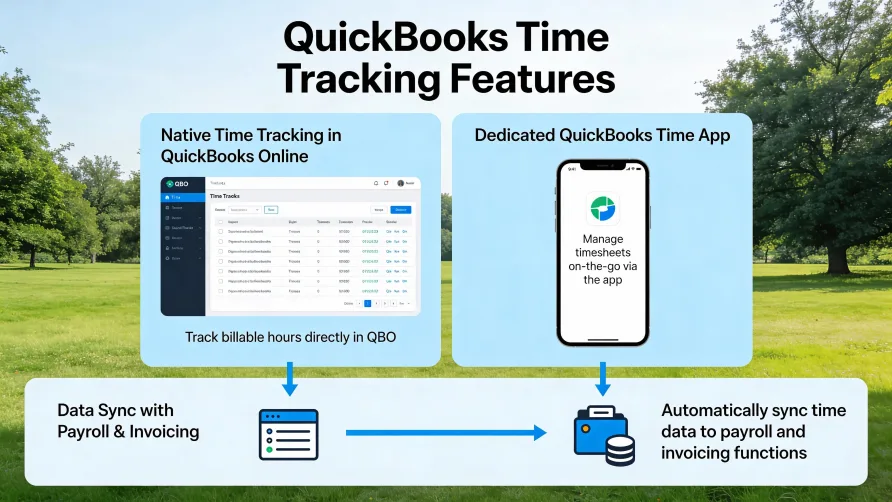
Yes, QuickBooks has time tracking capabilities. The QuickBooks ecosystem offers two distinct time tracking options: native time tracking built into QuickBooks Online and QuickBooks Time, a comprehensive standalone time tracking application that integrates with QuickBooks products. Understanding which option fits your needs depends on your business size, tracking requirements, and how you plan to use the time data.
Native Time Tracking in QuickBooks Online
QuickBooks Online includes basic time tracking functionality as a built-in feature for certain subscription plans. This native time tracking provides essential capabilities for businesses that need straightforward time capture without extensive workforce management features.
The native time tracking in QuickBooks Online allows you to record hours worked by employees and contractors, track time against specific customers and projects, mark time as billable or non-billable, and add services performed during tracked time. You can enter time either as single-time activities for one-off tasks or use weekly timesheets for recurring work patterns.
This built-in time tracking serves businesses well when time data primarily supports invoicing clients for billable work or processing basic payroll. The tracked hours flow directly into invoice creation and can feed payroll calculations when you use QuickBooks payroll services.
QuickBooks Time: The Comprehensive Solution
QuickBooks Time represents a more robust time tracking solution designed for businesses with complex workforce management needs. Previously known as TSheets before Intuit acquired it and rebranded it, QuickBooks Time offers significantly more features than the native QuickBooks Online time tracking.
QuickBooks Time provides mobile apps for iOS and Android that let employees clock in and out from anywhere, GPS tracking and geofencing to verify location for field workers, facial recognition and biometric options to prevent time theft, automated overtime alerts and notifications, advanced scheduling capabilities with shift management, project tracking with job costing, and comprehensive reporting and analytics.
The application supports various industries including construction, landscaping, healthcare, professional services, and any business with mobile or field-based workers. It works across multiple devices including smartphones, tablets, desktop computers, and can function as a kiosk time clock.
Is QuickBooks Time Included with QuickBooks?
QuickBooks Time is included with certain QuickBooks Online Payroll subscriptions but requires separate payment otherwise. Specifically, if you subscribe to QuickBooks Online Payroll Premium or Elite plans, QuickBooks Time access comes included at no additional cost. This bundling makes sense for businesses that need both payroll processing and sophisticated time tracking.
For businesses using standard QuickBooks Online without one of these premium payroll plans, QuickBooks Time requires a separate subscription. The standalone QuickBooks Time service operates independently and integrates with QuickBooks Online, QuickBooks Desktop, and various other accounting and payroll systems.
The native time tracking in QuickBooks Online, however, is included with Essentials, Plus, and Advanced plans at no additional charge beyond your QuickBooks subscription. Simple Start, the entry-level QuickBooks Online plan, does not include time tracking capabilities.
Which QuickBooks Plans Include Time Tracking?
For native QuickBooks Online time tracking, you need at least the Essentials plan. The Simple Start plan does not offer time tracking functionality. This plan limitation means sole proprietors or very small businesses on the lowest-tier plan must upgrade to access even basic time tracking features.
QuickBooks Online Essentials, Plus, and Advanced plans all include native time tracking. The functionality remains essentially the same across these tiers, with differences in these plans relating to other QuickBooks features rather than time tracking capabilities specifically.
If you need QuickBooks Time rather than just native time tracking, check whether your payroll subscription includes it or budget for a separate QuickBooks Time subscription. The integration between QuickBooks Time and QuickBooks Online works regardless of which QuickBooks Online plan you use, as long as it's not Simple Start.
How Do I Enable Time Tracking in QuickBooks?
Enabling native time tracking in QuickBooks Online takes just a few steps. Sign in to your QuickBooks Online account and click the gear icon in the upper right corner. Select "Account and Settings" from the dropdown menu. In the left navigation panel, click on "Time" or "Time Tracking."
You'll see a toggle switch to turn time tracking on. Flip this switch to the "On" position. Once enabled, you can configure additional preferences including the first day of your workweek, whether to show service fields on timesheets, and whether to display billing rates to users entering time.
The "Show service field" setting lets employees specify which services they performed when tracking time. The billing rate visibility setting determines if employees see the rate you charge customers. You might keep this off if you bill clients at different rates than you pay workers.
After configuring these settings, click "Save" to activate time tracking. You can then begin adding employees and contractors as time tracking users, setting up service items with billing rates, and entering time activities or timesheets.
For QuickBooks Time, the setup process differs. If QuickBooks Time is included with your payroll subscription, you access it through the QuickBooks Online interface by navigating to the Time tab and selecting "Go to classic QuickBooks Time." If you're subscribing to QuickBooks Time separately, you create a QuickBooks Time account and then connect it to your QuickBooks Online account through the Apps menu.
Adding Users for Time Tracking
Once time tracking is enabled, you need to add the people who will track time. QuickBooks Online allows unlimited time tracking users, and these users don't count against your regular user limits for the QuickBooks subscription.
To add a time tracking user, click the gear icon and select "Manage users." Click "Add user" and enter the person's name and email address. Under "Roles," select "Time track only" if this person only needs to enter time without accessing other QuickBooks functions. Send the invitation, and the user receives an email to set up their access.
For contractors or vendors, create or edit their vendor record and ensure the "Track payments for 1099" checkbox is checked. This enables time tracking for that contractor. You can then enter time on behalf of contractors or allow them to track their own time if you set them up as time tracking users.
When using QuickBooks Time, you add team members through the QuickBooks Time interface. Employees can download the QuickBooks Workforce app to clock in and out from their mobile devices, submit timesheets, and view schedules.
Entering Time in QuickBooks Online
QuickBooks Online offers two methods for entering time: single-time activities and weekly timesheets. Single-time activities work well for one-off tasks or irregular work patterns. You record the date, select the employee or contractor, choose the customer being billed, select the service performed, enter the time duration, and mark whether the time is billable.
Weekly timesheets suit employees who work regular hours across the week. The timesheet displays all seven days, letting you enter hours worked each day. You can track time for different customers or projects throughout the week, with the system calculating daily and weekly totals automatically.
Time entries can include notes explaining what work was done, which provides context when you convert time to invoices. The notes appear on customer-facing invoices if you include them, helping clients understand what they're paying for.
Converting Tracked Time to Invoices
One of the main benefits of time tracking in QuickBooks is the seamless flow from tracked hours to customer invoicing. When you create an invoice for a customer who has billable time entries, QuickBooks automatically displays those time entries in a side panel.
You can select which time entries to include on the invoice. QuickBooks pulls in the service performed, description including any notes, quantity of hours, and the billing rate you set up for that service. This automation eliminates manual invoice data entry and reduces billing errors.
For customers with multiple unbilled time entries, you can filter them by date range, employee, or service to find the specific hours you want to bill. The system tracks which time has been billed so you don't accidentally invoice the same hours twice.
If you prefer to review unbilled time separately before creating invoices, QuickBooks provides reports showing all unbilled time activities organized by customer or employee. This lets you verify hours and billing rates before converting them to invoices.
Time Tracking Reports
QuickBooks includes several time-related reports that provide insights into how time is being spent. The Time Activities by Customer Detail report shows all time entries organized by customer, useful for analyzing which clients consume the most hours.
Time Activities by Employee Detail breaks down time entries by team member, helping you understand individual productivity and workload distribution. The Unbilled Time report specifically highlights hours that have been tracked but not yet invoiced, ensuring you don't miss billable work.
These reports can be filtered by date range, customer, employee, or billing status. You can export them to Excel for further analysis or save them as PDFs for recordkeeping. The data helps with project estimates, capacity planning, and understanding profitability by customer or service type.
For businesses using QuickBooks Time, the reporting capabilities expand significantly with dashboards showing who's working in real time, overtime tracking and alerts, project cost comparisons against estimates, and detailed productivity analytics.
Integration with Payroll
Time tracking in QuickBooks integrates with QuickBooks payroll services to streamline payroll processing. When employees track their time, those hours automatically flow into payroll calculations. This eliminates manual timesheet entry during payroll runs and reduces the risk of payroll errors from transcription mistakes.
For hourly employees, the system calculates gross pay by multiplying tracked hours by their hourly rate. It flags overtime hours that should be paid at premium rates. The integration maintains links between time entries and payroll records, creating an audit trail for wage calculations.
When using QuickBooks Time with QuickBooks Payroll Premium or Elite, the integration becomes even more sophisticated. QuickBooks Time captures precise clock-in and clock-out times, tracks breaks, applies overtime rules automatically, and syncs all data to payroll with one click. This reportedly saves up to two hours per payroll run while reducing payroll costs through more accurate time capture.
Mobile Time Tracking
Both native QuickBooks Online time tracking and QuickBooks Time support mobile access, though the capabilities differ. For native time tracking, users can access QuickBooks Online through mobile web browsers to enter time activities or timesheets from their phones or tablets.
QuickBooks Time offers dedicated mobile apps for iOS and Android with extensive field worker features. Employees can clock in and out from anywhere with cell service, switch between different jobs or projects throughout the day, track breaks, add photos and notes about job progress, and access their schedules.
The GPS tracking in the QuickBooks Time mobile app records location data while employees are clocked in, useful for verifying that field workers are at authorized job sites. Geofencing can automatically remind workers to clock in when they arrive at a job site or clock out when they leave.
Managers can use the mobile app to approve timesheets, view who's currently working and where, modify schedules on the fly, and run reports. This mobile management capability helps supervisors stay on top of workforce operations even when they're not at a desk.
Time Clock Options
QuickBooks Time supports multiple time clock methods to accommodate different work environments. The mobile app serves as a personal time clock that employees carry with them. For shared workspaces, you can set up a tablet as a time clock kiosk where multiple employees punch in and out.
The kiosk time clock can use PIN codes, facial recognition, or QR codes for employee identification. Facial recognition helps prevent buddy punching where one employee clocks in for another who's absent or late. The system captures a photo each time someone clocks in, providing visual verification.
For office workers or remote teams, the web-based time clock accessed through any browser lets employees start and stop their time from their computers. All these time clock methods sync to the same central system, so managers see accurate consolidated data regardless of how employees are clocking their time.
Choosing Between Native and QuickBooks Time
The decision between using native QuickBooks Online time tracking and QuickBooks Time depends on your business needs. Native time tracking works well if you primarily need to track billable hours for invoicing, have office-based employees who can enter time at their desks, work with a small number of employees or contractors, don't need GPS verification or geofencing, and operate with simple time tracking requirements.
QuickBooks Time makes more sense when you employ field workers who need mobile time tracking, require GPS location verification, need sophisticated scheduling and shift management, want biometric time clocks to prevent time theft, must track time across multiple job sites, need detailed project costing and analytics, or manage larger teams with complex tracking needs.
Many businesses start with native QuickBooks Online time tracking and migrate to QuickBooks Time as they grow. The investment in the more comprehensive solution becomes justified when the time savings, accuracy improvements, and workforce management capabilities deliver clear return on investment.
Considerations and Limitations
Native QuickBooks Online time tracking has some limitations compared to dedicated time tracking solutions. It lacks advanced features like geofencing, facial recognition, automated shift reminders, and sophisticated scheduling tools. For businesses with basic needs, these limitations don't matter. For those with complex workforce management requirements, they become significant.
QuickBooks Time, while powerful, represents an additional expense for businesses not already subscribed to QuickBooks Online Payroll Premium or Elite. The subscription cost should be weighed against the benefits of improved accuracy, time savings in payroll processing, reduced time theft, and better workforce visibility.
Both options require proper setup and user adoption. Employees need training on how to track time correctly, whether to mark time as billable, and how to assign time to the right customers or projects. Without consistent use, time tracking systems provide incomplete data that undermines their value.
QuickBooks Time Tracking Meets Various Needs
QuickBooks does have time tracking, offered through two pathways with different capabilities and cost structures. The native time tracking in QuickBooks Online Essentials and higher plans provides basic functionality suitable for many small businesses focused primarily on billable hour tracking for client invoicing.
QuickBooks Time delivers comprehensive workforce management with mobile apps, GPS tracking, advanced scheduling, and sophisticated reporting for businesses with field workers or complex time tracking needs. It comes included with certain payroll plans or requires separate subscription.
For existing QuickBooks users, time tracking integrates seamlessly with accounting and payroll functions regardless of which option you choose. The tracked hours flow into invoices, payroll calculations, and reports without manual data transfer. This integration streamlines operations and improves accuracy across your financial systems.