
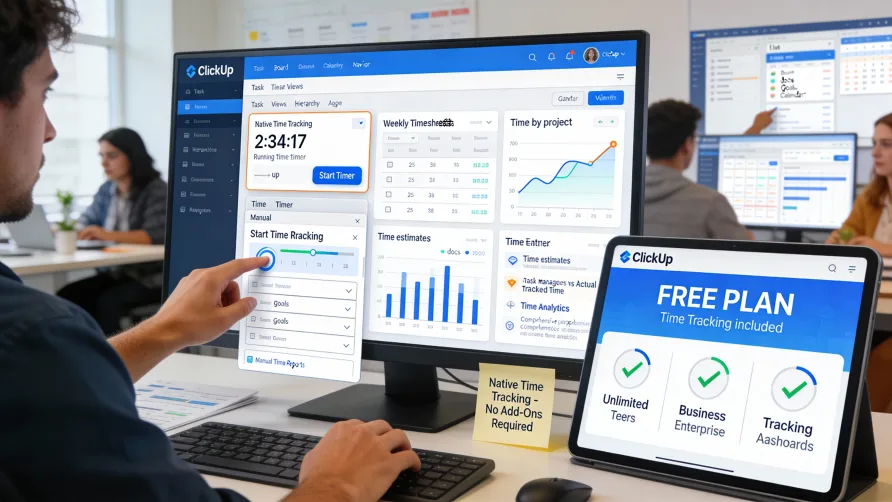
Yes, ClickUp includes built-in time tracking capabilities. The platform provides native time tracking features that integrate directly with your tasks and projects, letting team members track hours without using external tools or integrations.
ClickUp's time tracking works through running timers and manual time entry, giving users flexibility in how they record their work hours. The time data connects to your project management workflow, allowing you to analyze time spent on tasks, projects, and by team members.
How Do I Track Time in ClickUp?
Time tracking in ClickUp operates at the task level. Each task can have time entries associated with it, recording how much time was spent working on that specific item.
The most straightforward method is using ClickUp's built-in timer. Open any task and click the timer button, which starts tracking time automatically. The timer runs in the background as you work, and you can stop it when finished. The elapsed time records as an entry on that task.
ClickUp's global timer lets you track time from anywhere in the application without keeping a specific task open. You can start a timer for a task, navigate to other parts of ClickUp, and the timer continues running. This flexibility means you don't lose time tracking if you switch tasks or need to reference other information.
Manual time entry provides an alternative to running timers. If you prefer logging time after completing work or need to record hours worked earlier, you can manually add time entries to tasks. Specify the duration, add notes describing what you did, and the entry records on the task.
Time entries can include descriptions, allowing you to note what specific work the time represents. These descriptions help when reviewing time later or when you need to explain what consumed your hours on a project.
Multiple team members can track time on the same task. If several people collaborate on a task, each person's time entries record separately, giving you visibility into total time investment and individual contributions.
The platform supports time tracking across different devices. You can start a timer on your desktop, and it syncs to your mobile device. This cross-device functionality helps ensure you capture time accurately regardless of where you're working.
Is ClickUp Time Tracking Free?
Yes, ClickUp's time tracking is available on the free plan. Unlike some project management platforms that restrict time tracking to paid tiers, ClickUp includes basic time tracking functionality even for users on the free Forever plan.
The free plan includes the ability to start timers, manually log time, and view time entries on tasks. This accessibility makes ClickUp an attractive option for small teams or individuals who need basic time tracking without additional software costs.
However, some advanced time tracking features are limited to paid plans. Time reporting, time estimates, and certain time tracking customizations may require upgrading beyond the free tier. The core functionality of tracking time on tasks is available across plan levels, but analysis and reporting capabilities expand with higher-tier plans.
For businesses evaluating ClickUp, the inclusion of time tracking on the free plan lets you test the functionality before committing to a paid subscription. You can verify whether ClickUp's time tracking meets your needs without financial risk.
Time Tracking Features in ClickUp
ClickUp's time tracking includes time estimates that let you set expected durations for tasks. When creating or editing tasks, you can add an estimated time to completion. These estimates help with project planning and resource allocation.
The platform compares estimated time against actual tracked time. This comparison shows whether tasks are taking longer than expected, helping you improve future estimates and identify tasks that consistently require more time than planned.
Time rollup features aggregate time from subtasks to parent tasks. If you break a large task into smaller subtasks and track time on each, the parent task shows total time across all its children. This rollup provides visibility into overall time investment for complex work.
Billable time tracking lets you mark time entries as billable or non-billable. For businesses that invoice clients based on hours, this distinction helps separate client work from internal time. You can filter and report on billable hours specifically.
Time tracking reports show time distribution across various dimensions. You can view time by person, by project, by task, or by time period. These reports help understand where team time goes and which projects consume the most resources.
The platform integrates time tracking with workload views. You can see team member capacity based on assigned tasks and estimated time, helping managers identify overloaded team members or uneven work distribution.
Time entries appear in task activity streams. When someone tracks time on a task, it creates an activity record showing who tracked time and how much. This visibility helps teams understand task progress and effort investment.
ClickUp supports time tracking ranges that let you specify when time was worked. Rather than just logging duration, you can record specific start and end times. This precision helps when reconstructing timelines or verifying when work occurred.
Limitations of ClickUp Time Tracking
ClickUp's time tracking serves project management and productivity analysis well but lacks features dedicated workforce management platforms provide. The system doesn't include formal timesheet approval workflows where managers review and approve employee hours before payroll processing.
Payroll integration is limited. ClickUp doesn't connect directly to most payroll systems, which means exporting time data for payroll requires manual steps. You can export time tracking data to spreadsheets, but the platform doesn't generate payroll-ready files in formats specific payroll providers expect.
The time tracking focuses on task-level tracking rather than workforce attendance management. ClickUp doesn't provide employee scheduling, clock-in/clock-out functionality for shift workers, or attendance monitoring for tracking tardiness and absences.
Labor law compliance features like overtime alerts, break tracking, or rest period monitoring aren't included. Businesses subject to complex labor regulations may find ClickUp's time tracking insufficient for compliance purposes.
Invoice generation from tracked time doesn't exist natively. While you can mark time as billable and report on billable hours, ClickUp doesn't create client invoices based on tracked time. Agencies and consultancies that bill hourly need separate invoicing tools.
The platform lacks different billing rates for different work types or team members. You can track billable hours, but ClickUp doesn't apply varying rates to calculate billing amounts. Rate configuration and invoice calculation require external tools.
Time tracking for specific cost accounting or job costing needs may require workarounds. While you can track time by task and project, mapping that time to specific cost centers, departments, or financial codes for detailed accounting purposes isn't straightforward.
Time Tracking Integration With ClickUp Projects
Time tracking data integrates with ClickUp's broader project management features. Time appears on tasks alongside other task information like status, assignee, due date, and priority. This integration means time tracking lives within your project workflow rather than existing as a separate system.
Custom fields can extend time tracking capabilities. You might create custom fields for project codes, client names, or work categories that complement time tracking. These custom fields help categorize time entries for specific reporting needs.
Automations can trigger based on time tracking events. You could create automations that change task status when time is tracked, notify managers when time exceeds estimates, or update custom fields based on time entries.
Dashboard widgets display time tracking metrics. You can create dashboards showing total time tracked this week, time by project, time by team member, or comparisons between estimated and actual time. These visualizations communicate time data to stakeholders.
Time tracking connects to ClickUp's goals feature. You can set time-based goals and track progress against those goals using time tracking data. This connection helps teams monitor whether they're hitting time-related targets.
The platform's workload view incorporates time estimates. You can see team capacity based on estimated task durations, helping identify who has capacity for additional work and who's overloaded.
Use Cases for ClickUp Time Tracking
ClickUp's time tracking works well for project-based teams who need to understand time investment in their work. Software development teams, marketing agencies, creative teams, and professional services firms can track hours against projects and tasks to improve planning and productivity.
Freelancers and consultants using ClickUp for project management can track billable hours within the same tool they use for organizing work. The billable hour designation helps separate client work from business development or administrative time.
Internal teams tracking time for productivity analysis benefit from ClickUp's integration with project data. You can see not just how much time tasks consumed but also correlate time with task attributes like priority, custom fields, or project stage.
Teams that want to improve time estimates find ClickUp's comparison between estimated and actual time valuable. Over time, this data helps teams estimate more accurately by understanding historical patterns in how long work actually takes.
Project managers monitoring team workload can use time tracking data alongside task assignments. Understanding both assigned work and actual time spent helps identify when team members are stretched thin or when projects are consuming more resources than planned.
When ClickUp Time Tracking Falls Short
Businesses that need time data for payroll processing require more than ClickUp provides. The lack of timesheet approval workflows, payroll system integration, and formal time submission processes makes ClickUp unsuitable as a primary payroll time tracking solution.
Agencies and consultancies that bill clients based on hours need dedicated time tracking tools with invoicing capabilities. ClickUp can track billable hours, but generating actual invoices requires external software.
Organizations with complex labor law compliance requirements need workforce management platforms built for compliance. Features like overtime calculation, break enforcement, schedule management, and regulatory reporting aren't part of ClickUp's feature set.
Shift-based businesses or companies managing frontline workers need tools designed for attendance management. ClickUp doesn't provide scheduling, clock-in/clock-out, or the attendance monitoring features these environments require.
Large organizations with detailed cost accounting needs may find ClickUp's time tracking too simple. Mapping time to specific financial codes, cost centers, or complex organizational hierarchies for accounting purposes requires more sophisticated tools.
Getting Started With ClickUp Time Tracking
If you're already using ClickUp for project management, enabling time tracking is straightforward. The feature is available by default, so you can simply start using timers or logging time on tasks immediately.
Train team members on when and how to track time. Decide whether your team will use running timers, manual entry, or a combination. Establish expectations about tracking time consistently and what level of detail to include in time entry descriptions.
Consider adding time estimates to tasks as part of your planning process. These estimates provide baseline data for comparing against actual time and help identify when work takes longer than expected.
Create reports or dashboard widgets to monitor time tracking. Visibility into time data helps ensure the information you're collecting actually gets used for decision-making rather than just accumulating unused.
If you need time tracking for billable work, establish processes for marking time as billable and reviewing billable hours regularly. Create reports showing billable time by client or project to support invoicing processes.
For teams new to ClickUp, test the time tracking on a small project before rolling it out organization-wide. This pilot approach helps identify any issues with your time tracking workflow before committing fully.
Combining ClickUp With Dedicated Time Tracking
Some businesses use ClickUp for project management while connecting dedicated time tracking tools for specific needs ClickUp doesn't address. Several time tracking platforms integrate with ClickUp, syncing tasks and time data between systems.
This combined approach makes sense when you need features like payroll integration, formal timesheet approval, or client invoicing that ClickUp lacks. You maintain your ClickUp project workflow while using a specialized tool for comprehensive time tracking.
The integration typically works by connecting your ClickUp account to the time tracking platform. ClickUp tasks import into the time tracking tool, and you can track time in the external platform against those ClickUp tasks.
Time data from the integration may sync back to ClickUp, showing tracked time on tasks even though the tracking happened in the external tool. This synchronization maintains visibility in both systems.
The downside of this approach is managing two systems, training on both platforms, and potentially paying for multiple subscriptions. Evaluate whether the additional features justify the added complexity.
Evaluating ClickUp for Your Time Tracking Needs
Assess whether ClickUp's time tracking provides the features you need. If you're primarily tracking time for internal productivity analysis and project planning, ClickUp's native tracking may be sufficient.
Consider what you'll do with time data once collected. If you need to process payroll, generate client invoices, or comply with labor regulations, ClickUp alone won't meet those needs.
Evaluate the importance of integration with your broader workflow. If you already use ClickUp for project management or plan to, having time tracking in the same system reduces tool sprawl and maintains workflow continuity.
Review reporting requirements. ClickUp provides basic time tracking reports, but if you need sophisticated analytics or specific compliance reporting, dedicated time tracking platforms offer more robust capabilities.
For teams just starting with time tracking, ClickUp's free tier provides a risk-free way to begin tracking time and understanding whether formal time tracking provides value before investing in specialized tools.